News stories are added in the system as a POST.
Step 1 – Login to the Admin Section
The first step is to login to the admin section of your Council website.
If you are unsure how to do this, please see the lesson on logging in.
Step 2 – Add a New Post
Once in the admin section, click on POSTS from the left hand menu to open up the POSTS list.
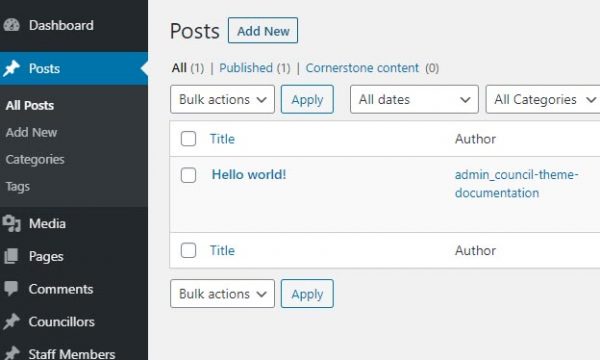
You can now click on the “Add New” button at the top to open up a new Post.
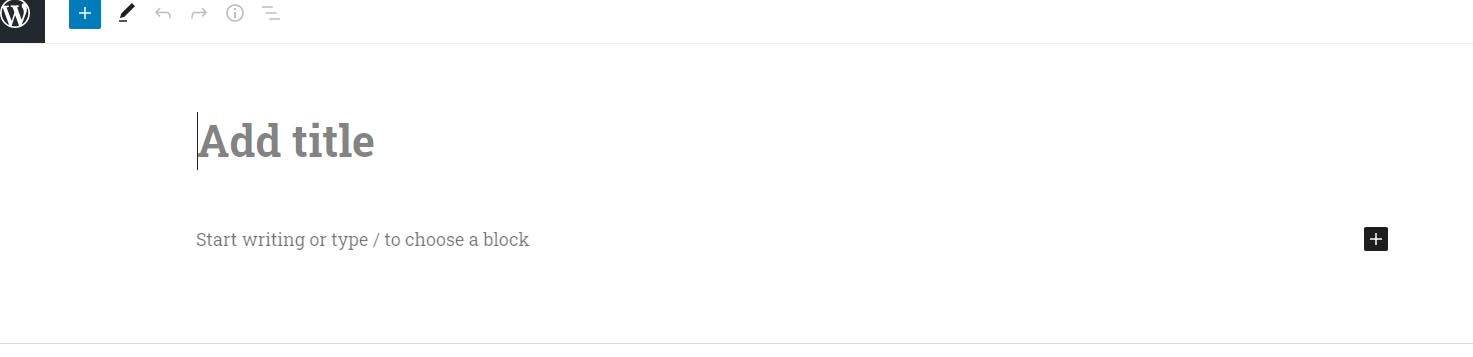
Add your title
The first task is to give your post a title, so simply type this. The cursor will default to the correct location.
Add your content
You can simply start typing your content, and the editor will create the paragraph block for you. If you want to add images or other text types, please refer to the following lessons:
Add to category
Having completed your content, you will need to add it to the relevant category.
First make sure the Document tab is selected in the top right of the screen.
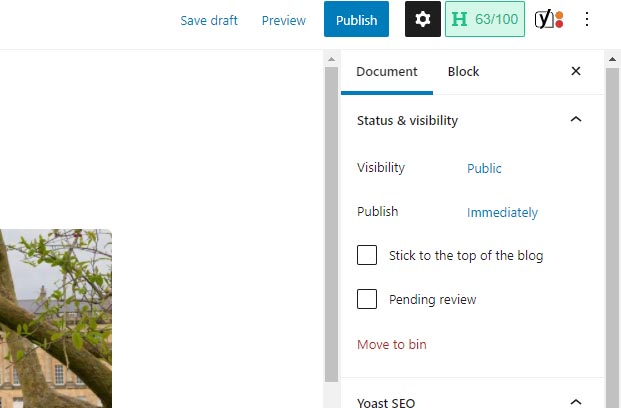
With the Document tab highlighted, scroll down to the Categories section, click the down arrow to expand the section, and then tick the categories appropriate to the news story.

Add your Featured Image
You can now add you featured image for the news story. This image will appear above the title of the news story when the user views the News page.
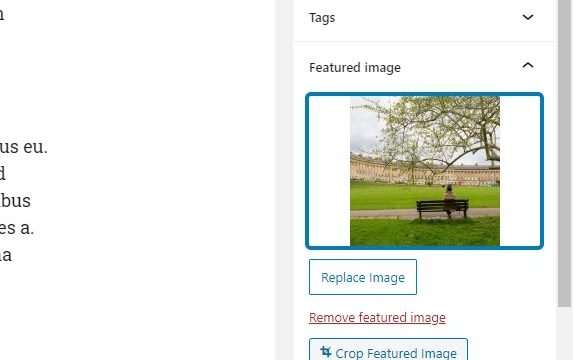
Scroll down beneath the Category section to the Featured Image section and click the drop down arrow to expand it.
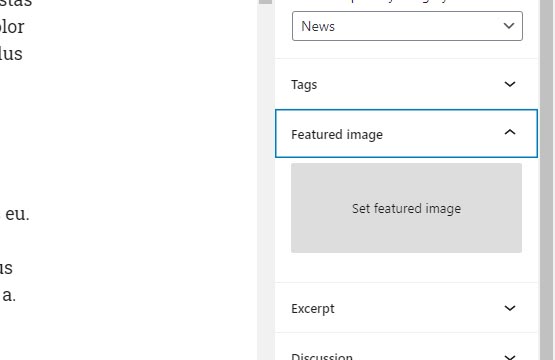
Click on the “Set featured image” box to open up the media library, and select the image you wish to use. You can also upload a new image if needed. Once selected, click the blue “Set Featured Image” button to the bottom left of the Media library pop up window.
Your featured image will now appear in the box.
Add your Excerpt
You have the option to add an excerpt for the story. To do this scroll down beneath the Feature Image section and click on the Excerpt section to expand it.
Add your excerpt text in the box.

Publish your News Post
With everything entered, it is time to publish your news post and set it live.
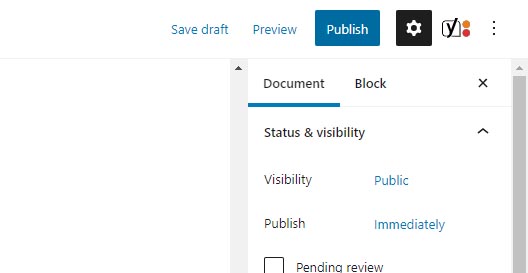
Scroll to the top of the screen and click on the blue Publish button.
The pre publish checks will be shown, and to complete the process simply click on the blue Publish button once more.
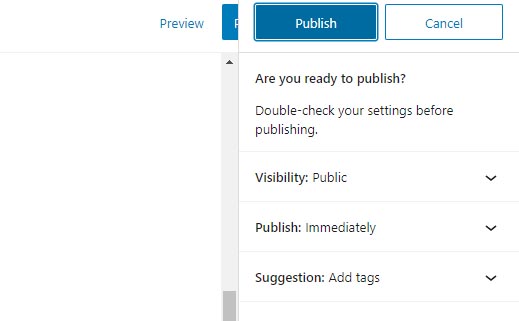
Your news post is now published.