Your Council website contains an alerts system that enables you to add a banner to all pages, or specific pages, with important information.
For example you might want to quickly highlight a road closure, an emergency, or an important event.
To add an Alert you first need to sign into the admin section of your council website. If you are unsure how to do this, please see the signing in lesson.
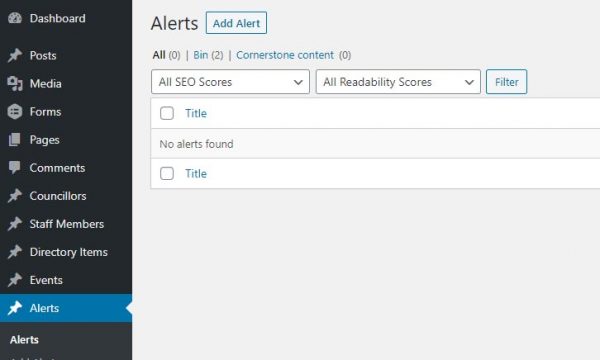
Once you have logged in, select Alerts from the left hand Admin menu, you can then click the Add Alert button and proceed to add a new alert.
Add the Title of the Alert
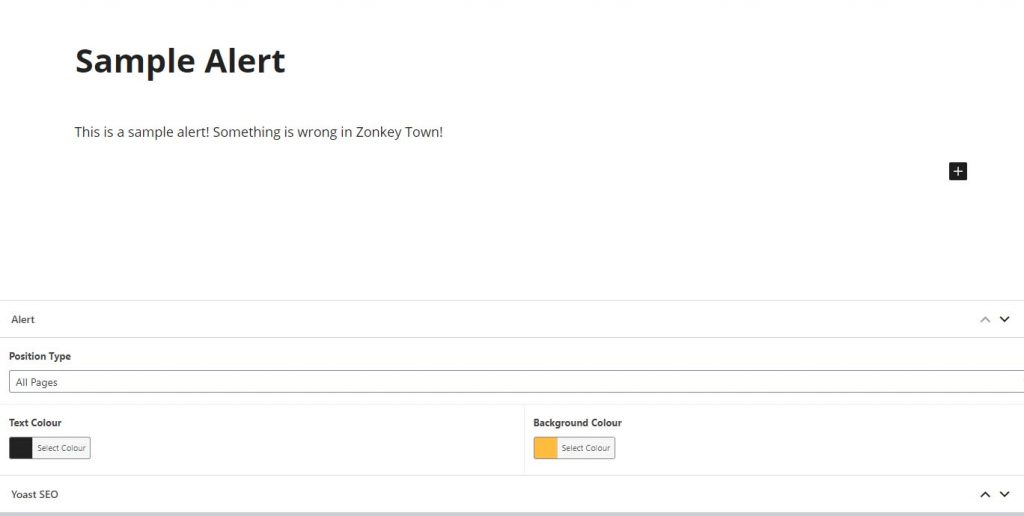
The cursor will default to the Add Title, and that is the first thing to enter.
Beneath the title you can add the content infomation for the alert using standard Gutenberg blocks. For detail on adding content please see the Adding Content section of this site.
You can then select the Pages or Custom set of pages where the alert should be displayed using the Position Type box, and then you can choose the text colour for the alert, and the background colour for the banner.
Publish you Alert
With everything entered, it is time to publish your Alert and set it live.
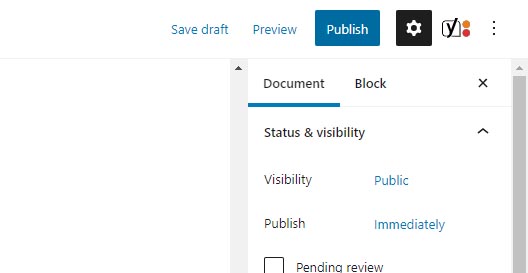
During publishing, you can are able to change from “immediately” to a future date – should you wish to schedule the time and date for the alert to appear.
Scroll to the top of the screen and click on the blue Publish button.
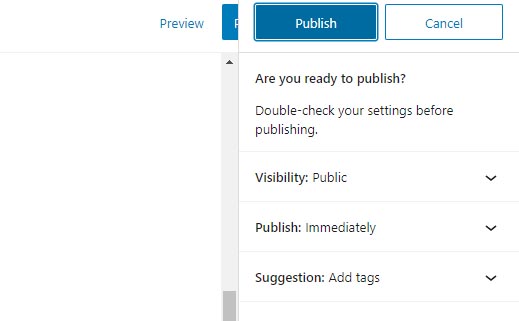
The pre publish checks will be shown, and to complete the process simply click on the blue Publish button once more.
Your alert is now live on the website.