The directory structure is set up within your website, so all you need do is add directory items.
Your first step is to sign in to the Admin section of your Council website, if you are unsure of how please see the guide to signing in.
Once you have signed in click on the Directory link in the left hand admin menu.
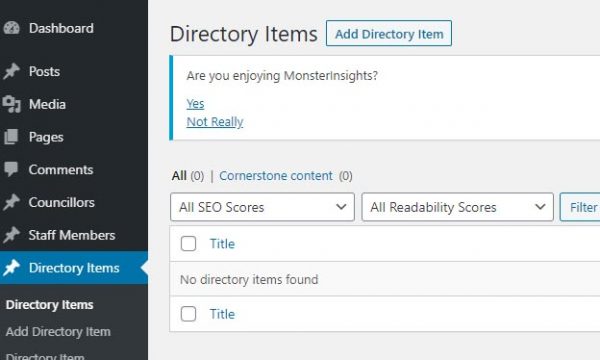
Next, click the Add Directory Item button to proceed. You will be presented with a blank Directory Item page.
The cursor will default to the place for the Title, so add that first.
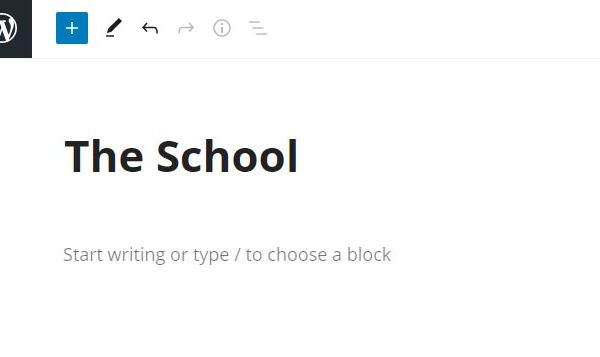
Add your Directory Item Details
Next click on the Gutenberg New Block + symbol, and select the Directory Item Information card.
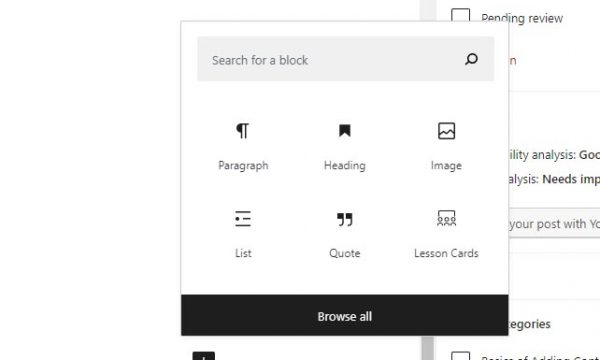
The block will be loaded into the page, and you can go ahead and click the Pencil icon to open the block ready to add details.

With the block editor open you can go ahead and fill in the directory item details.

Add a map to the directory item
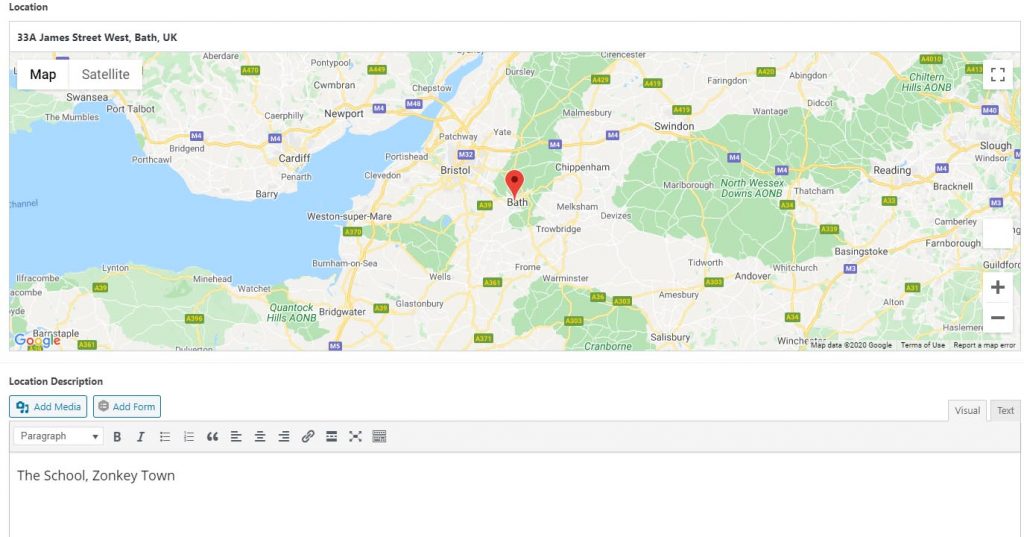
Having entered the directory item details, scroll down the page to the Location section. Simply enter the address and the map system will locate for you. Remember to use the plus and minus buttons on the map to set an appropriate zoom level.
Once located, you can add a Location Description below.
Add to category
With all the directory information added, the next step it to add it to the correct category.
Click on the Document tab at the top right of the page.

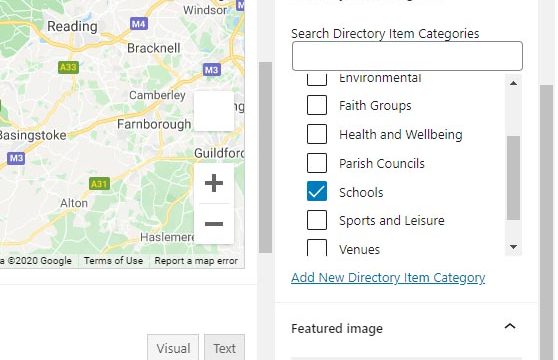
Scroll down to the Directory Item Categories, expand the view, and then tick the relevant categories for the entry.
Add Your Featured Image
You can now add you featured image for the Directory Item.
Scroll down beneath the Category section to the Featured Image section and click the drop down arrow to expand it.
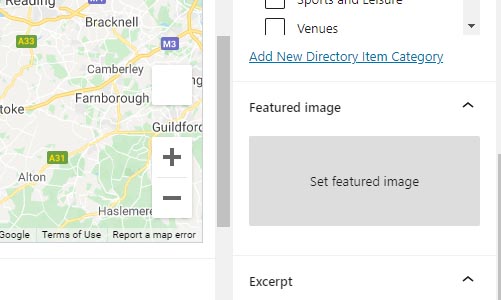
Click on the “Set featured image” box to open up the media library, and select the image you wish to use. You can also upload a new image if needed. Once selected, click the blue “Set Featured Image” button to the bottom left of the Media library pop up window.
Your featured image will now appear in the box.
Add Your Excerpt
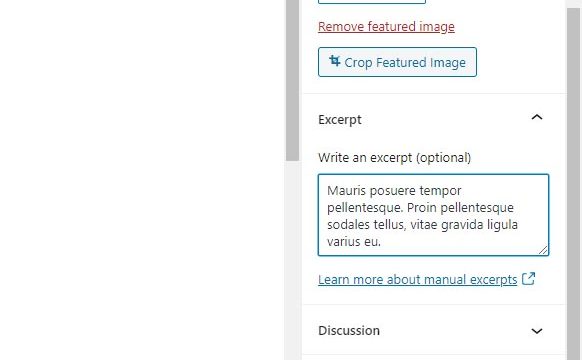
Beneath the Featured Image box you can add an excerpt for the Directory Item if you wish.
Publish Your Directory Item
With everything entered, it is time to publish your Directory Item and set it live.
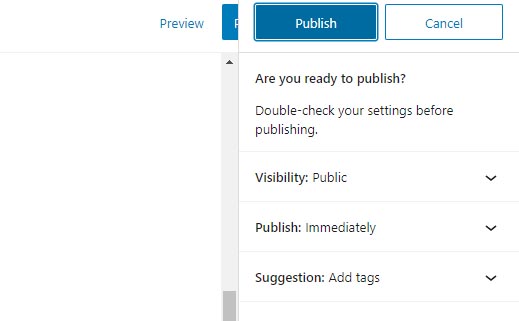
Scroll to the top of the screen and click on the blue Publish button.
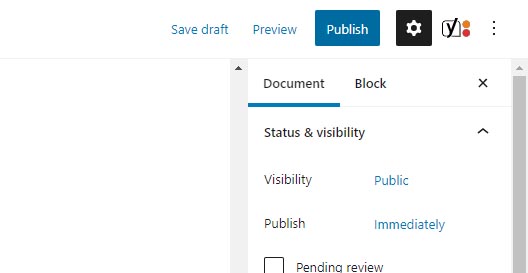
The pre publish checks will be shown, to complete the process simply click on the blue Publish button once more.
Your Directory Item has been added.