If you are creating a post, a meeting, or even a social event, you may well have documents to add. For example you might wish to add a PDF Agenda, minutes, or supporting documents.
To add tese kind of resources, click on the Gutenberg Add New block + symbol, search for Resource Cards, and then click to add the block.
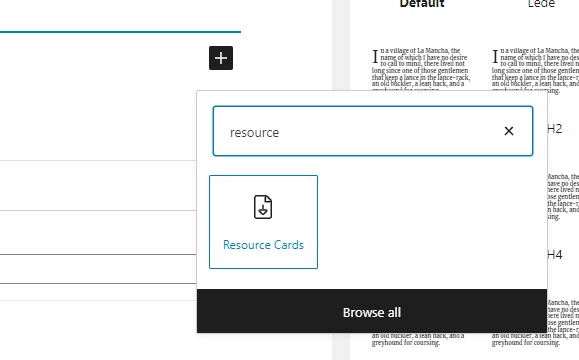
The block will load in to the page for you, and you can then click on the Pencil icon above the block to open it ready to add files.

With the Resource cards open, click on the Resources tab, and then click the blue “Add File” button. This will add a file entry box.
Click the grey Add File button to select the resource file you wish to add.
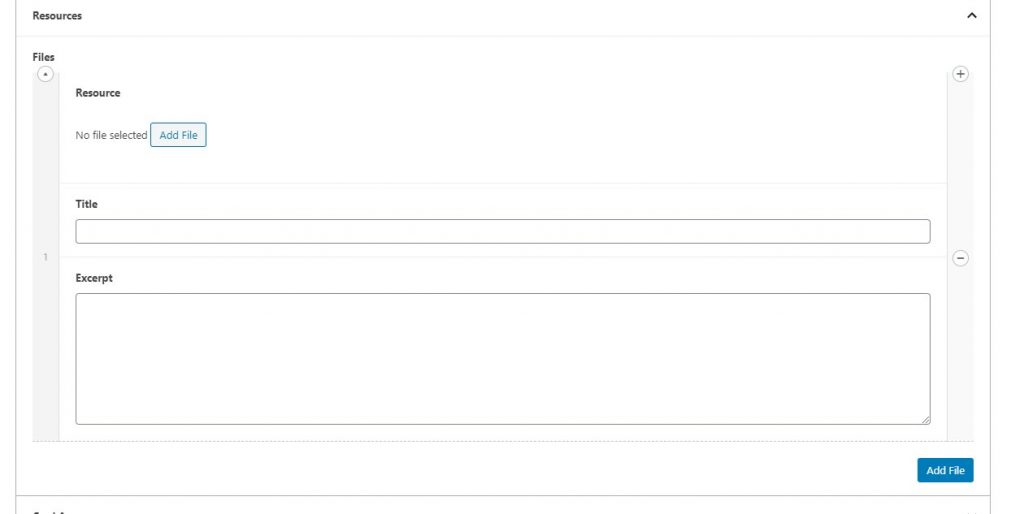
The Media Library window will open. If the resource has already been added to the Media Library you can simply click on it and then click the blue Select button in the lower right of the window.
If you need to upload the file simply select the Upload files tab at the top left of the window, and then drag and drop the file, or use the standard file selection method by clicking the grey Select File button. Once the file has been uploaded, click the blue Select button on the lower right of the window.
The file is added to the Resource cards for you, and you can now add the Title and Excerpt.
For the document title, if an Agenda or Minutes, we recommend staying with the same format, that being:
Committee name Document Type (dd mmm, yyyy), for example Full Council Agenda (20 Apr 2021)
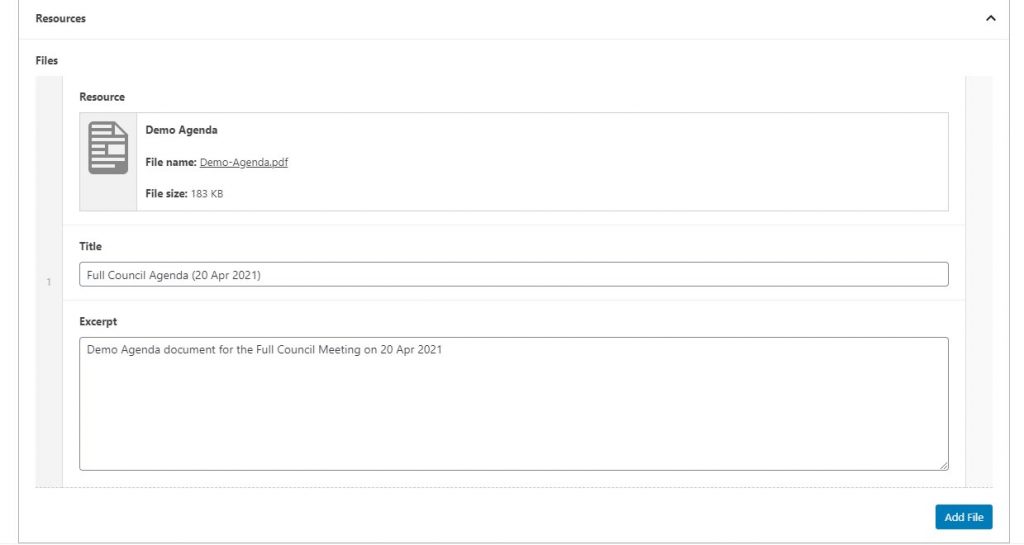
Should you need to add another document, just click the blue Add File button on the bottom right of the Resource Card box and repeat the steps above.